Sana Learn Changelog
September 30, 2026
Sana Learn MCP connector

Your teams can now use Sana from the AI assistant they already work in, including Claude and ChatGPT. People ask for what they need in plain language, like "enroll the new Stockholm hires in the onboarding program," and the assistant carries it out in Sana. Admins can create courses, programs, groups, and certificates, turn a PDF into a course, manage enrollments, and run live sessions. Learners can also ask questions about content in Sana from these tools. Any action that notifies people, changes calendars, or deletes something needs admin approval, with each request laid out as one numbered sequence of steps. Ideal for teams running workflows across their wider tech stack. Once an admin switches on MCP in Sana settings, anyone can connect from their assistant.
September 17, 2026
Studio cards: searchable, translatable, and easier to edit
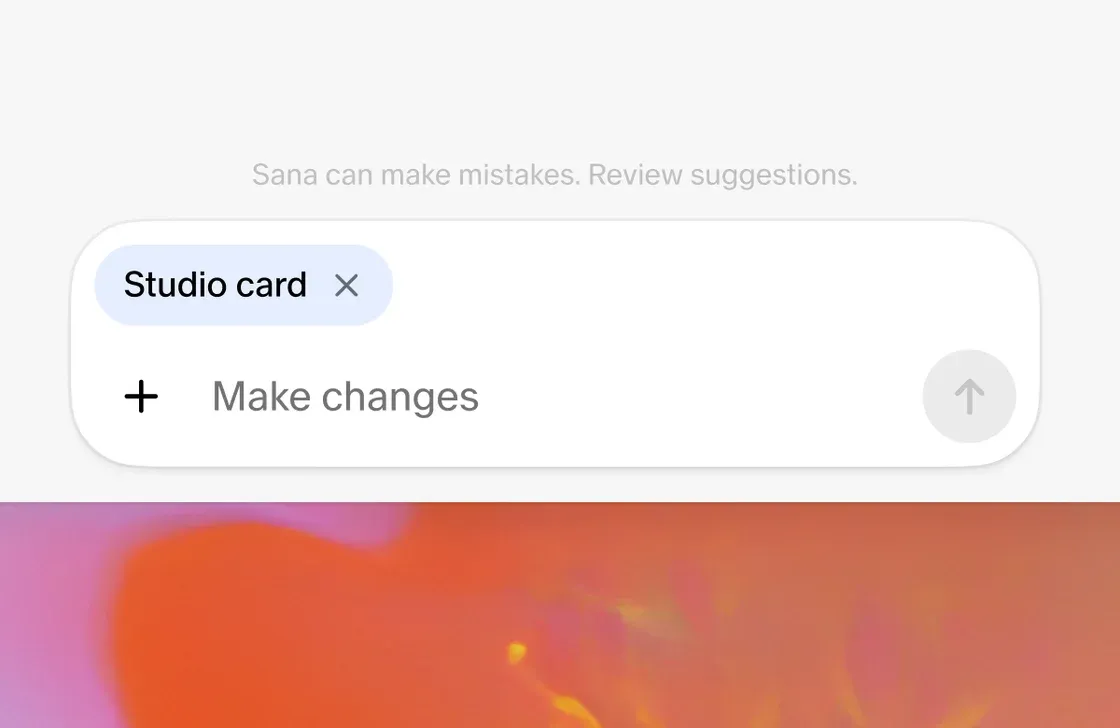
Studio cards have had a full refresh. Their content now shows up in search, and translation carries them into every language your course supports, so a team translating onboarding into eight languages gets its Studio exercises in every one, with no rebuild. You can also edit text directly without prompting, open cards straight in Edit mode, and work with an updated model and prompt. Customers told us one of Sana's most-loved features hadn't seen improvements in a while, and this is our answer. Ideal for creators building for global audiences and learners who rely on search. New and republished cards update automatically. For existing cards, a small edit and one republish is enough, with no need to regenerate. Translation also works in Workday Learning environments.
September 08, 2026
Admin mode in Insights
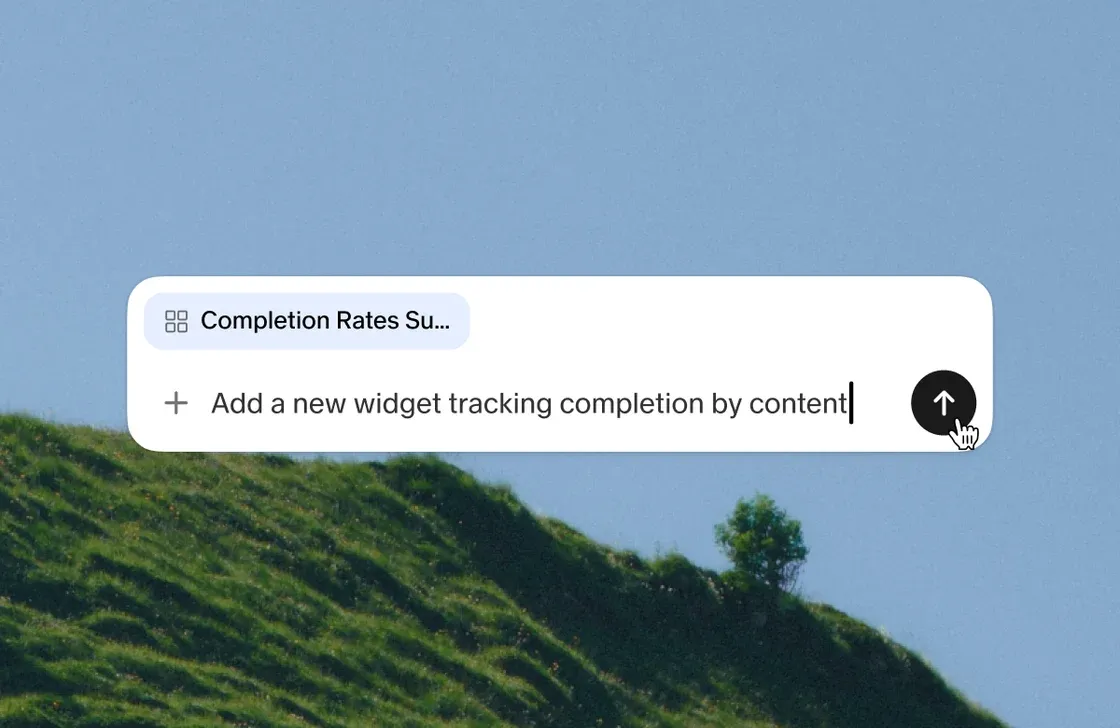
Admin mode, Sana's AI admin agent, now works inside Insights, right beside your data. Ask it in plain language to create, rename, or find dashboards, and to add, move, update, or remove widgets. In the widget builder, describe what you want, like "completion rate by department for Q3," then fine-tune the result in Customize. Every change appears as an approval card with a live preview, and nothing changes until you approve it. Until now, admins analyzed data in one place and ran workflows in another. Now the agent sees what you see and builds the dashboard with you. Ideal for admins and group admins who report on learning without being reporting specialists. Find it on any dashboard as a floating chat or side panel, and in the widget builder.
August 31, 2026
Disable start over for courses
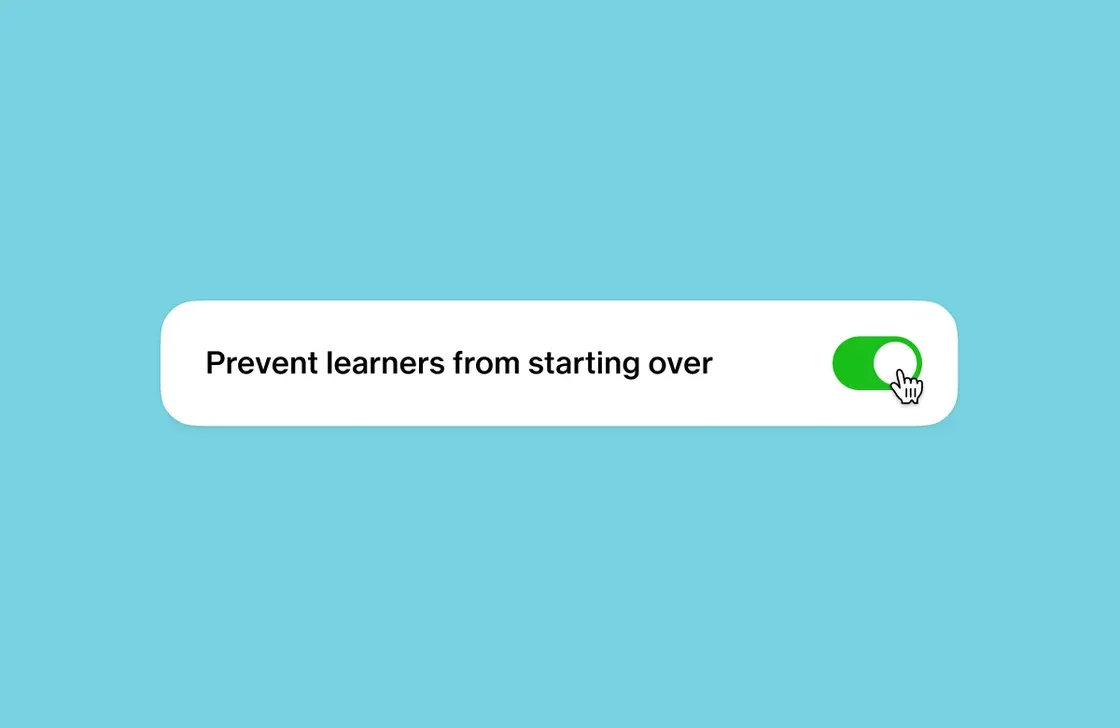
Learners can usually reset their own progress on a course or program and start again from scratch. This new organization-wide setting turns that option off for everyone, so the Start over option no longer appears on any course once enabled. Built for organizations that need consistent progress and completion records for compliance, reporting, or auditing, it gives admins one central way to protect course data without configuring each course separately. Find it in Settings > General > Learner Experience.
August 24, 2026
CSV tooling for Admin mode
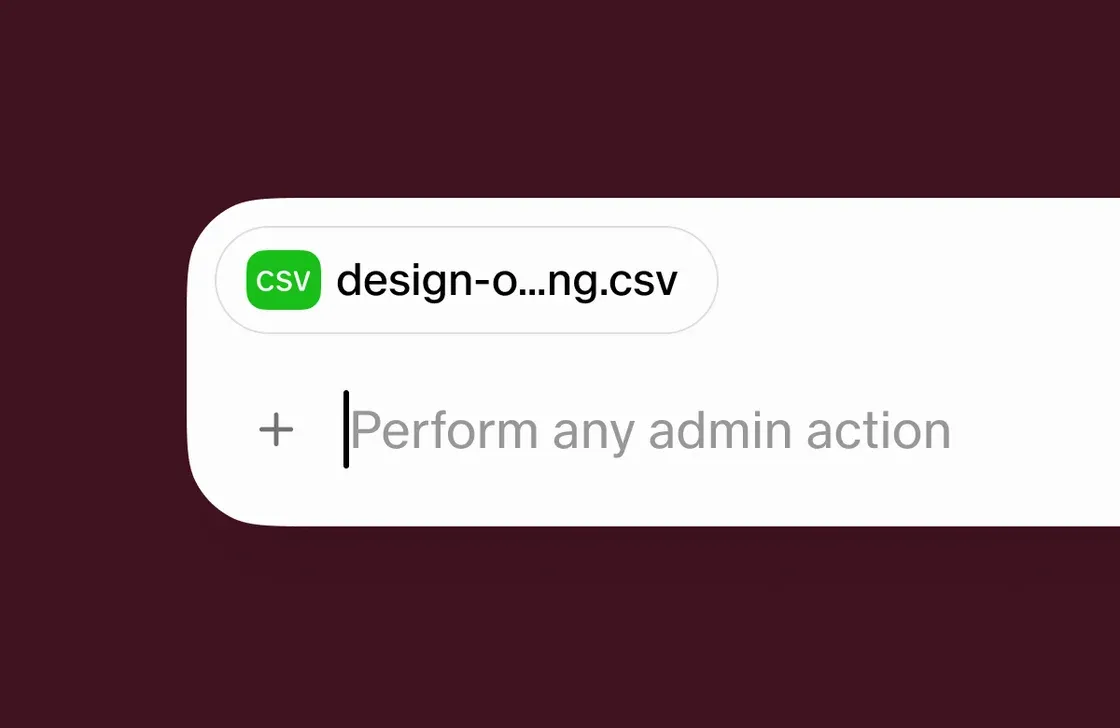
Attach a CSV or XLSX file straight to a message in the Admin Mode chat, and the agent reads it to take action within your existing permissions. A human stays in the loop, so any suggested action needs your confirmation before it runs. It supports bulk assignments, bulk deactivation, attendance imports for in-person events, and progress resets. Ideal for admins handling changes across many users at once. Find it in Manage > Admin Mode, under the "+" icon.
August 12, 2026
Admin mode for group admins
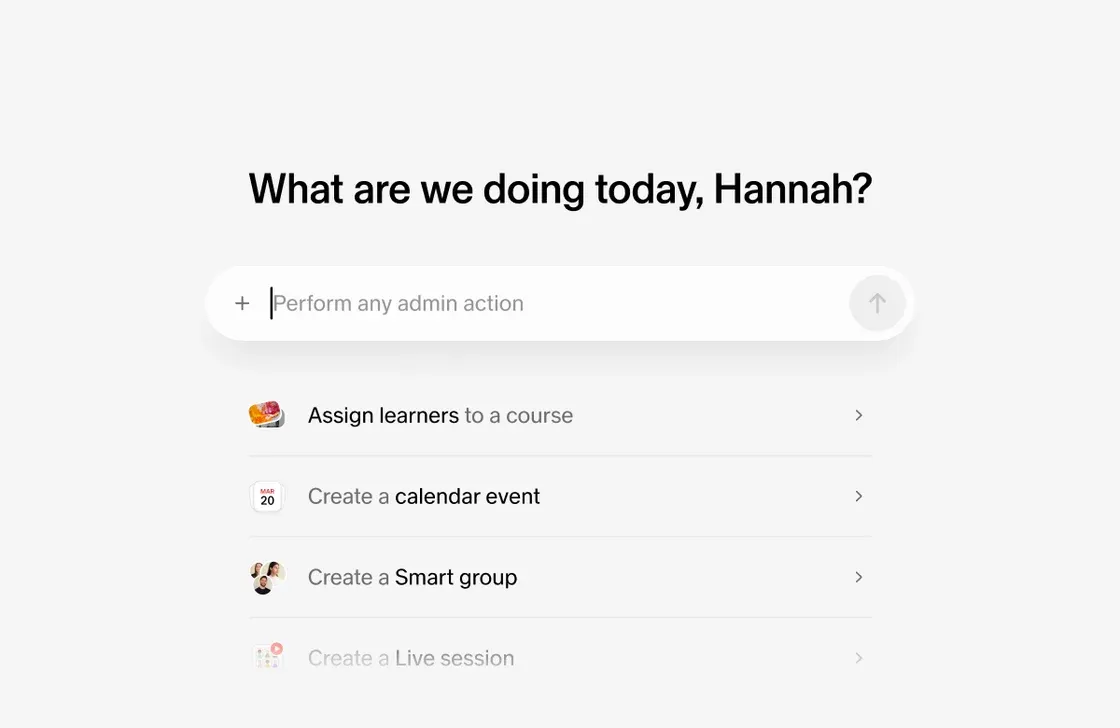
Group admins can now use Admin mode within their existing permissions. They can generate insights and run multi-step L&D workflows, such as creating smart groups and assigning content to the right learners, without needing broader admin access. Designed for organizations where day-to-day learning operations sit across groups, regions, or business units, this gives group admins a faster way to get work done while keeping access scoped to what they already manage. Find it in Manage > Admin Mode.
August 03, 2026
Custom notification cadence
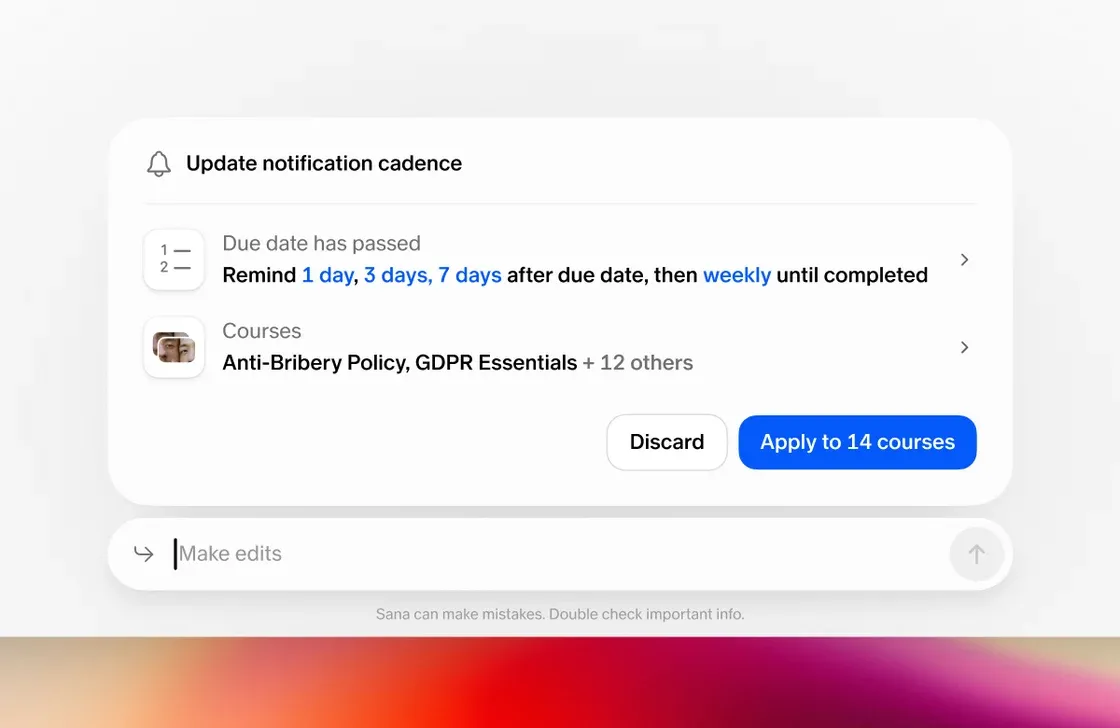
Reminders no longer have to follow one organization-wide schedule. Admins can now set a custom due-date reminder cadence on any self-paced course or program, and creators or collaborators with manage access can do the same for content they manage. A custom cadence set at the content level overrides the organization default, and notifications can also be turned off entirely for a specific course or program without affecting reminders anywhere else. Ideal for teams whose reminder timing needs to match the learning itself, whether a course is urgent, optional, long-running, or self-serve. Find it in the new Notifications tab under content-level Settings.
July 23, 2026
Tutor card
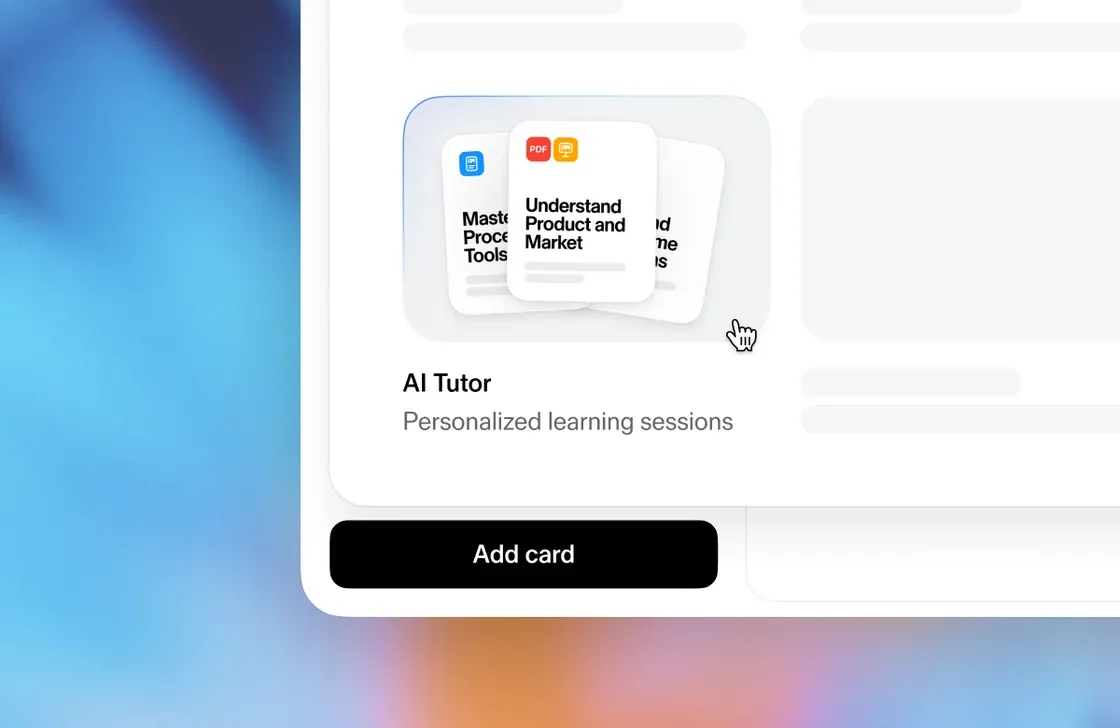
Add a custom AI tutor session to any course, built around a defined learning outline. Open Edit mode, ask it to create a tutor session on a topic, and it selects sources and suggests an outline you can adjust before adding other cards, publishing, and assigning it to learners like any other course. Built for creators who want to deliver personalized learning at scale, and for learners who need a path that adapts to what they already know.
July 14, 2026
Custom org-wide content instructions
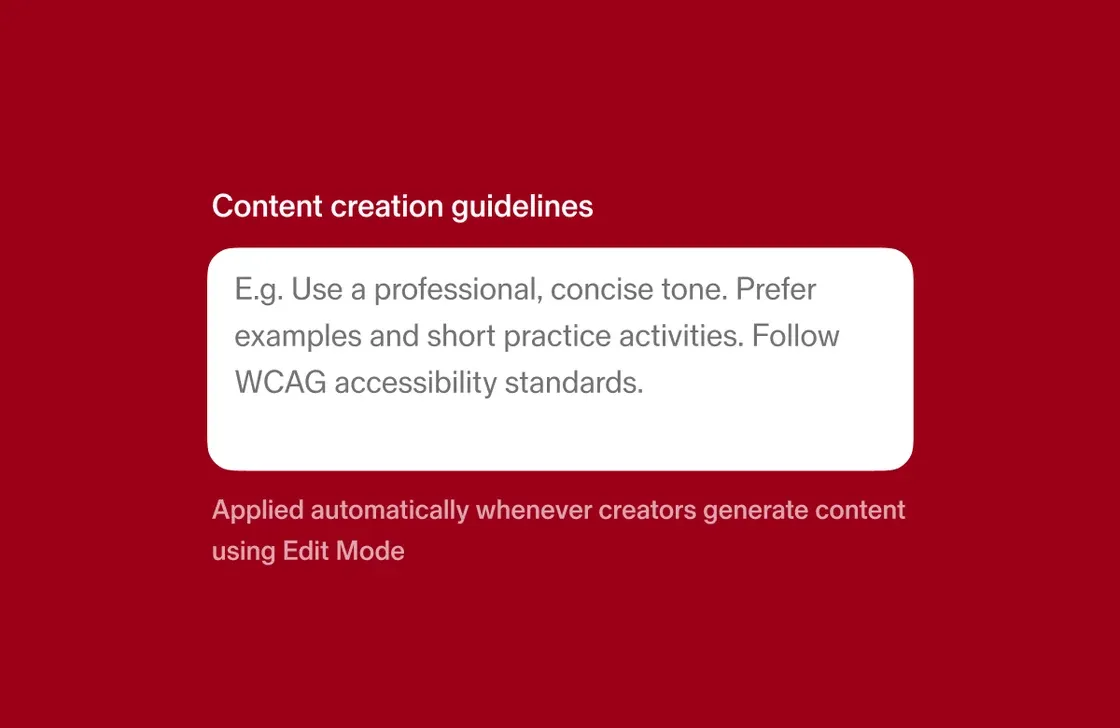
Set content creation guidelines once, and every request in your tenant gets held to them. This gives admins a way to open up content creation to more people while keeping tone, terminology, and brand consistency intact, particularly valuable for organizations with many contributors. Set it up in Settings > General.
July 06, 2026
Bulk course conversion
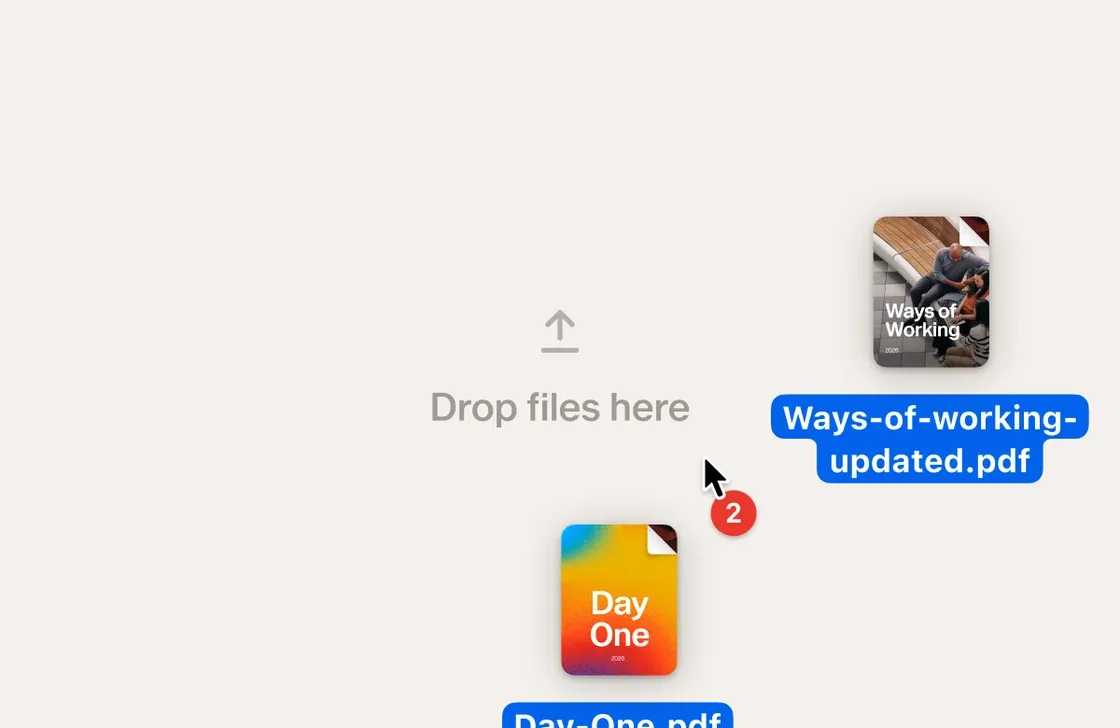
Convert multiple files into Sana-native courses in one click. Pick a set of PDFs or SCORM packages, and Edit mode turns each one into its own editable, self-paced course, with custom instructions to guide tone, structure, or emphasis across the batch. Built for admins and content creators migrating large volumes of content into Sana Learn. Find it in the template picker under 'Convert files,' or in Manage > Content > Import files.
June 22, 2026
Accessibility updates
Learner-facing interfaces have been updated across the board. Keyboard navigation is improved for search and question cards, heading structure has been reworked to give creators more control for screen readers, and aria titles, descriptions, and labels have been added across video, embed, and program cards. Visible focus states are now also available in the template picker.
June 16, 2026
Forced anonymous mode
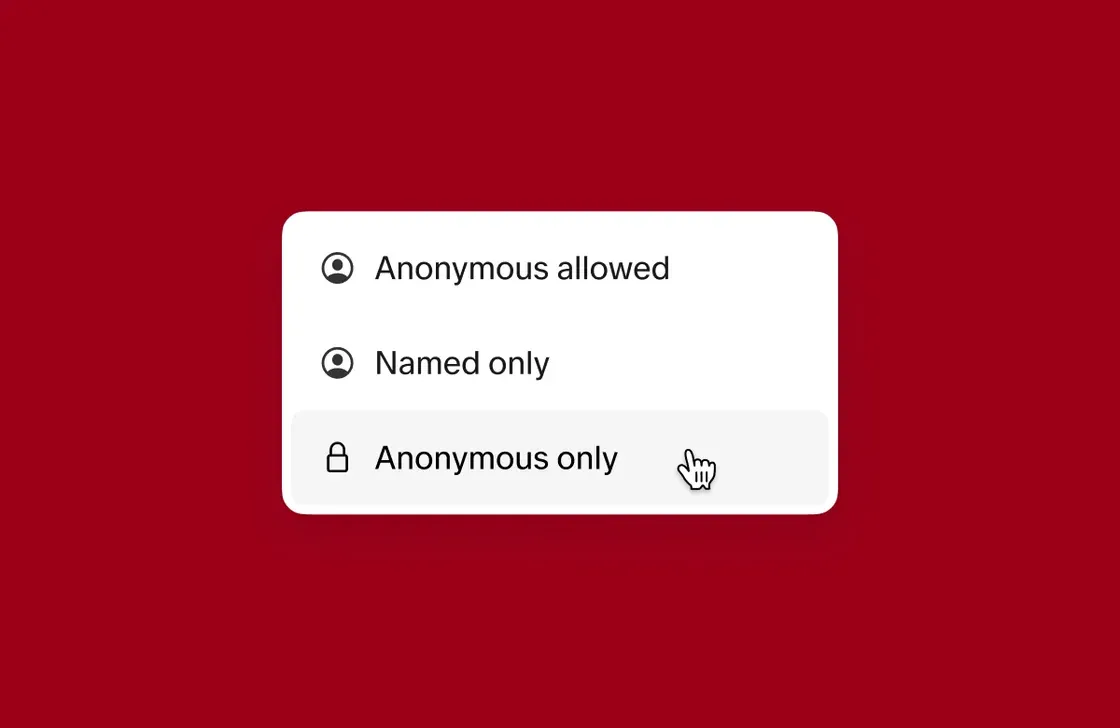
When anonymous mode was optional, some organizations needed more. Forced anonymous mode removes the choice entirely — all responses are anonymous in the session and in Insights, with no option to attach a name. Now available across Matrix, Survey, Drop a Word, Reflections, Polls, and Sliding Scale cards. Find the toggle in card settings when editing any supported card type.
June 01, 2026
Admin mode
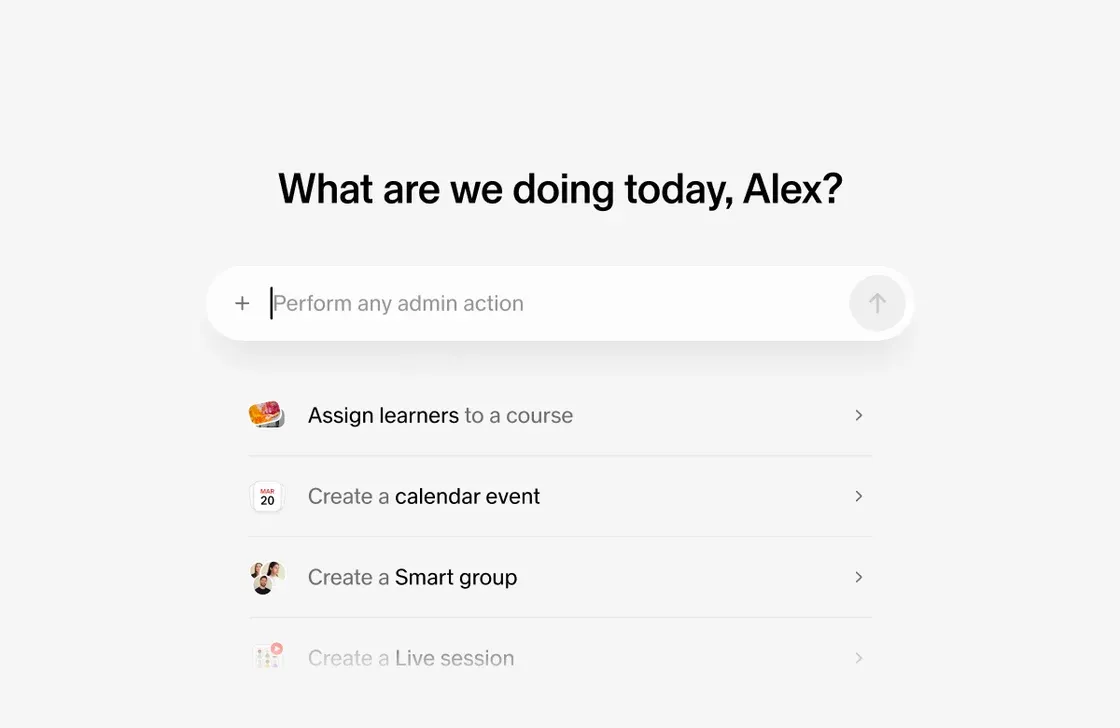
Admin mode is an AI agent that knows your entire Sana organization — your courses, users, groups, programs, and data — and can act on it. Ask it to build a smart group, assign content based on survey scores, pull a completion report, or send course reminders. The agent confirms before it acts and suggests follow-up prompts, so you can chain workflows together naturally. To get started, open Manage, find it in the left sidebar, and start with "What can you do?" to see the full list of supported actions.
May 13, 2026
Certificate-based enrollment exclusions
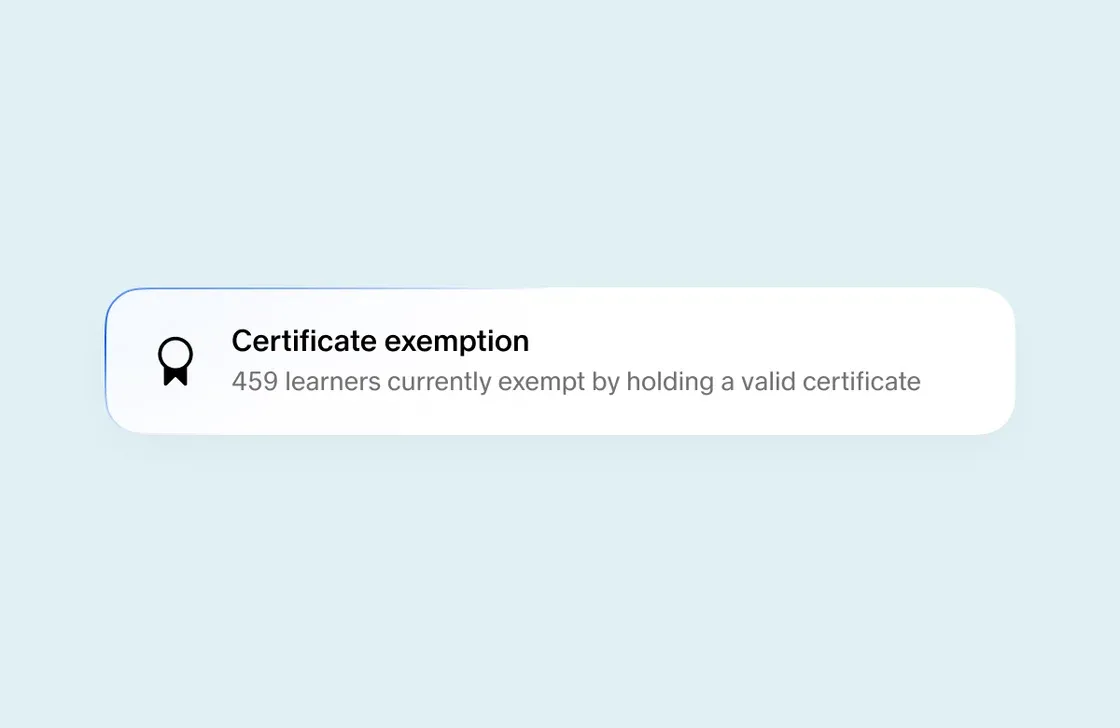
Add an exclusion to any program enrollment rule based on whether a learner already holds a specific certificate. The rule then skips anyone with that credential, so learners aren't pushed back into training they've already completed. Useful for compliance training with multiple paths to the same certification, or when learners transfer between teams and would otherwise repeat content. Find this in Manage → Programs → [Program] → Enrollment rules.
May 05, 2026
Synced sections
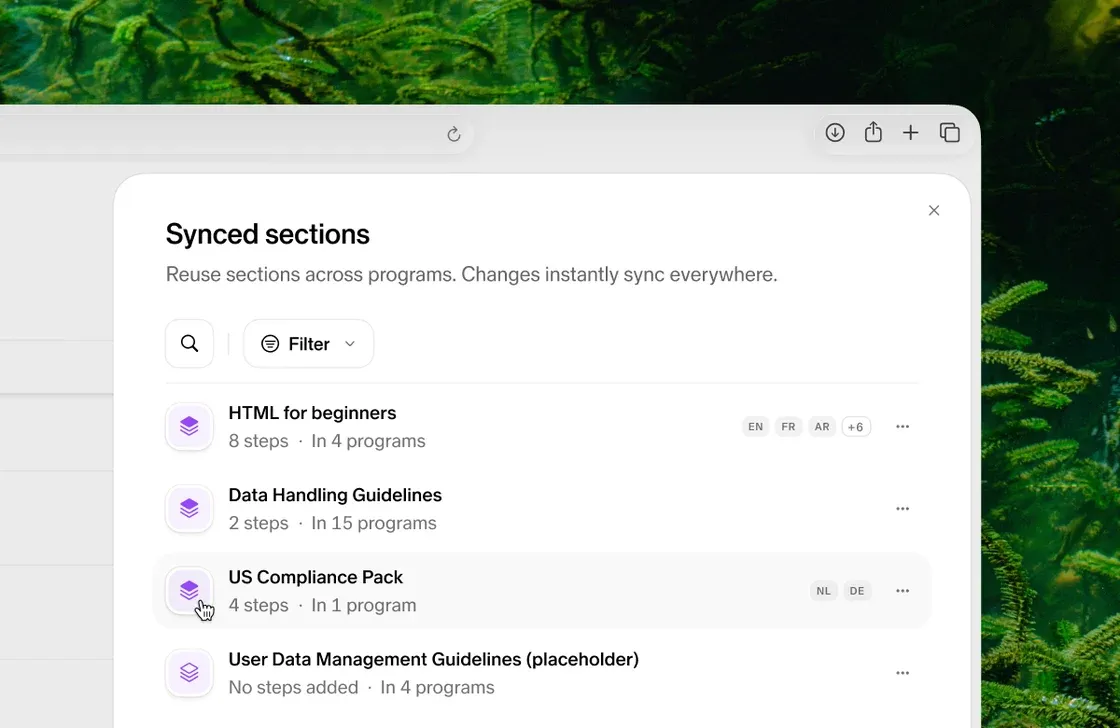
Build a set of courses once and reuse it across every program. Synced sections are reusable groups of courses, like a set of compliance modules or an onboarding block, that you can drop into multiple program outlines. Update the section once and the change applies everywhere it's used, whether you're adding a course, removing one, or reordering. Translate, duplicate, or rearrange them like any other section. Find synced sections in the program editor when building or editing a program.